
3. Consent Option Definitions
Some clubs need more than a simple “I Consent” tick-box to a normal club privacy policy that is common to the whole membership. Some clubs want the ability to have options that might only be acceptable to a subset of the club members, but neverthless, is a service that the club wishes to do.
The most common request is
- We want to create a “Yearbook”. How do we obtain consent to share members details with other members
Crossmember allows you to create these custom consent options, called Consent Option Definitions. Once created, they can be inserted into your GDPR Policy so members can complete them as part of the consent process.
This article explains how to create these definitions, how to insert them into your policy, and how to understand the colour indicators that show their status.
What a Consent Option Definition contains
Each custom definition has three parts:
- Label – the name members will see next to the field.
- Description – for admin use only (shows on the Member Record screen to help explain what the option is for).
- Type – what sort of field members will complete.
You can choose from:
- Checkbox (yes/no)
- Drop-down list
- Text box
- Multi-select list
For drop-downs and multi-select fields, you must enter the available choices as a comma-separated list such as:
Email, Phone call, Text, WhatsApp
Adding new definitions
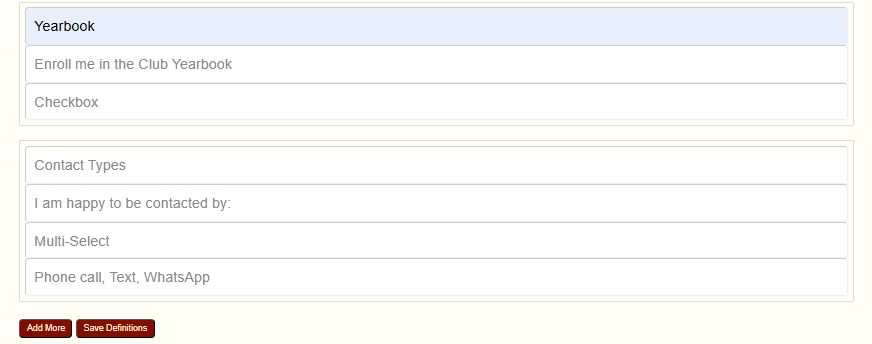
On the GDPR Setup page (Admin → Setup → GDPR(tab)), you’ll see a form for creating definitions.
You can:
- Fill in label, description and type
- Label: Will be output on the screen next to the input type (checkbox, drop-down, multi-select, text box)
- Description: Additional text that will be output on the Member Record to remind the member what the option was for, if required.
- Type: Checkbox, Drop-down, Multi-select or Text
- Add the list values (comma-separated) if needed for that type.
- Click Add More to create another option, then you can save them all at once instead of after each one.
- Add as many as you like before saving
- Click Save once you’re finished
You do not need to save between each definition. Add them all at once, then save once at the bottom.
Understanding the colour indicators
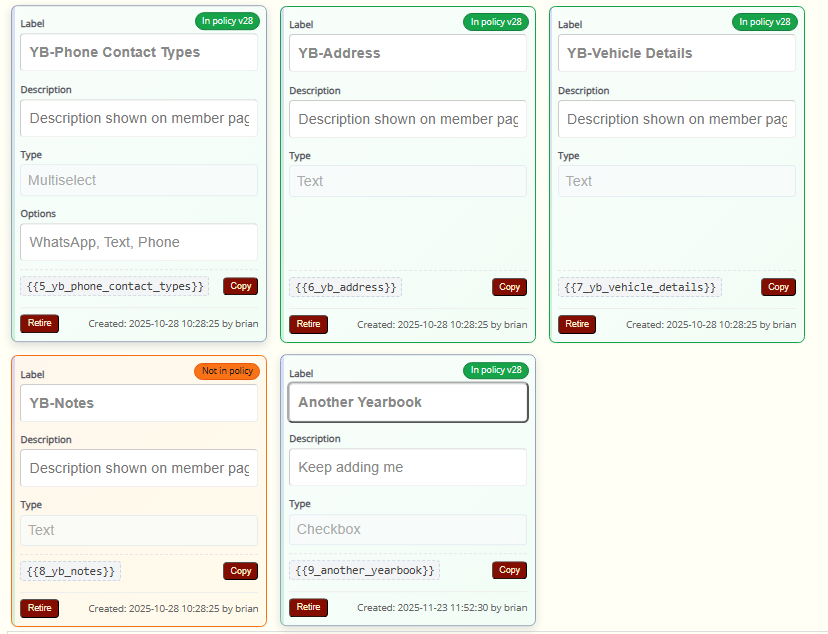
After saving, each definition will appear with a colour indicator: Green, Amber or Grey. These colours tell you how the definition relates to your current GDPR policy.
Green — Active and used in the policy
The definition exists, it is active, and its tag (explained below) appears in the currently active policy.
This means everything is fully in sync.
Amber — Active but not yet used in the policy
The definition is available for use but its tag has not been placed into the policy text.
Your policy is still fine — you simply haven’t added this field for members yet.
Grey — No Active Policy
This is the important one.
Grey means there is currently no active policy.
When that happens, all definitions turn grey together.
This situation normally occurs when:
- A definition that is in use inside the policy has been retired, OR
- A policy contains a tag that does not exist or has been removed
When this happens, Crossmember automatically marks the policy as Retired, because it is no longer valid.
And when the policy is retired, all definitions show grey, regardless of their own individual status.
This is Crossmember’s way of protecting clubs from having a live policy with broken or missing definitions.
Definition tags — how you place them into the policy
Each definition is given a tag that looks like this:
{{3_your_tag_name}}
The tag name has a unique number followed by text made up from the label. The unique number ensures uniqueness of the definition if a label is used mulitiple times. Remember that old retired definitions still exist in the database for audit purposes and there must be no confusion.
Next to each tag is a Copy button. Use this to copy the tag cleanly.
To insert a definition into the policy:
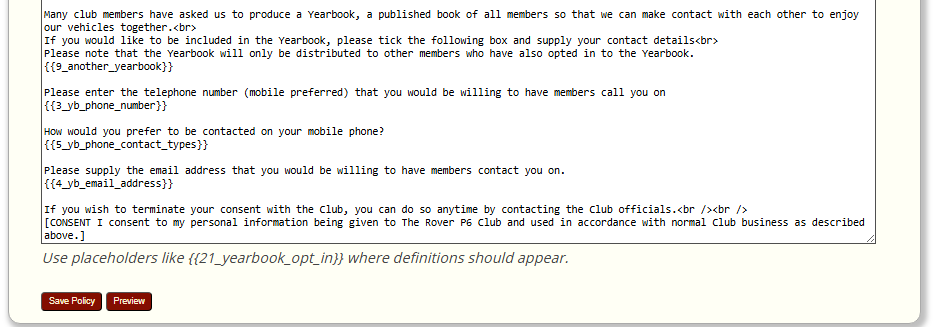
- Scroll to the GDPR Policy text box
- Click where you want the field to appear
- Add additional text to help the member properly understand what the consent option is for
- Paste the tag
- Preview the policy (Only save when you’re absolutely certain it is correct).
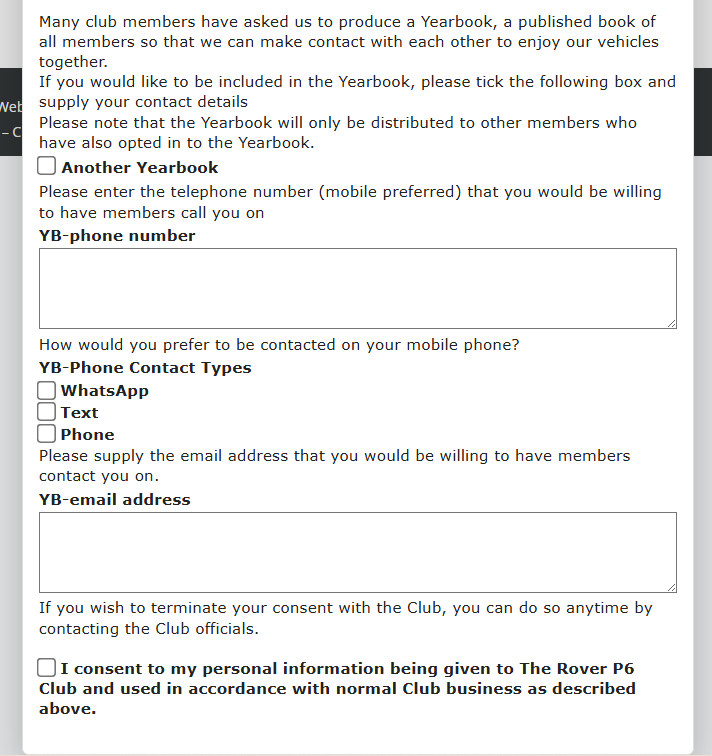
When members view the policy, the tag becomes the actual checkbox, drop-down or text field, just like the preview.
5. Rules that keep your policy valid
Crossmember automatically checks the policy before allowing it to become active.
A policy cannot go live if:
- It contains a definition tag that does not exist
- It contains a tag from a definition that has been retired
If the system detects a problem:
- The policy is automatically marked Retired
- All definitions turn Grey
- A message appears to alert you to what needs fixing
This ensures members will never see a broken policy.
6. Using Preview (highly recommended)
The Preview button shows exactly how the policy will appear to members, including:
- Collapsible sections
- Consent Options
- Layout and spacing
- Any incorrectly placed or broken tags
It is normal for clubs to spend time adjusting the layout, moving tags around and refining wording.
Preview helps you get it right before saving to activate the policy.
Retiring Consent Options
When a Policy is updated, or Club services change it is normal to revist the Consent Options to ensure that your Members are consenting to the correct things.
If an Option has changed, or the meaning of the option has changed, it must be retired as it no longer reflects what the Member consented to.
In our Yearbook example above, the Yearbook was only distributed to members who had also opted in to the Yearbook.
If (however unlikely) the club decided to give the Yearbook to everyone, then this is NOT what the member consented to. The definition of the consent option must be retired and a new one created and inserted.
This way, each consent option has explicit meaning and the Club should not change it’s meaning without gaining re-consent to a new option.
Each Consent Option has a ‘Retire’ button. Clicking this button will immediately retire the option and remove it from the page. It can never be re-used.
7. Summary
- Consent Option Definitions allow your club to collect additional consent information.
- Each definition has a label, description and type.
- Drop-down and multi-select fields require comma-separated values.
- Tags (in curly braces) are inserted into the policy to show fields to members.
- Green = Active and used, Amber = Active but unused, Grey = No active policy.
- If a definition in the policy is retired, the policy becomes invalid and all definitions turn grey.
- Use the Preview button to ensure your layout, tags and wording are correct.