
5. Member Report
GDPR Filters in the Member Report
The Member Report is one of the most powerful tools in Crossmember. It lets club officers create tailored lists of members based on names, membership types, renewal status, and more.
A recent improvement adds a GDPR Filters section that lets you filter members by their consent choices as well.
This article explains how those GDPR filters work.
Who can use GDPR filters in the Member Report?
GDPR Filters are only available to:
- Admins
- Membership Secretaries
- Committee-level officers with permission
Regional organisers cannot use GDPR Filters.
This ensures that consent information is only accessed by those responsible for data compliance.
Opening the GDPR Filters
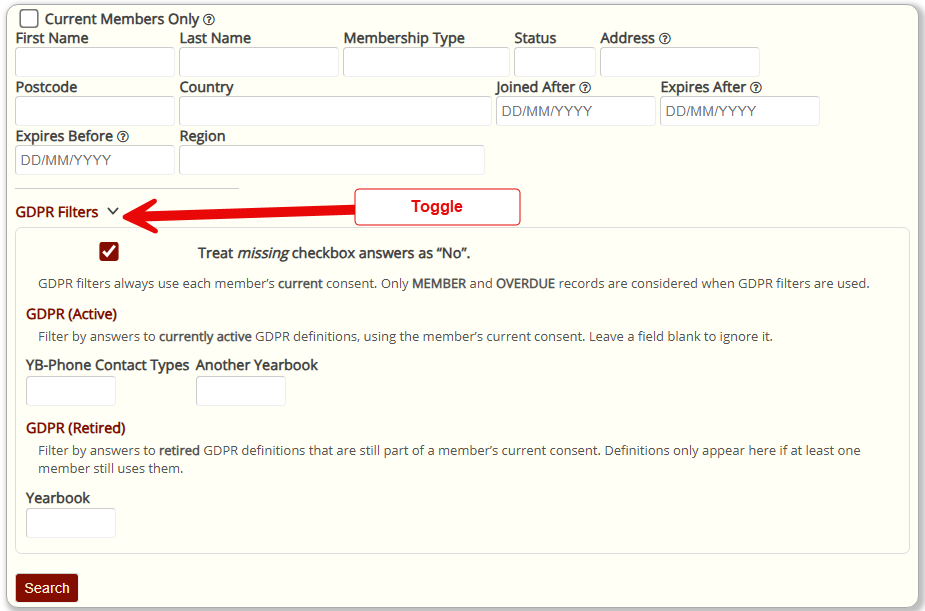
Inside the Member Report, you’ll see a toggle labelled GDPR Filters.
When you expand it, you will see two lists:
- GDPR (Active)
- GDPR (Retired)
These come directly from your club’s GDPR setup and refer to the Consent Option Definitions.
Both Active and Retired filters work only on each member’s current consent record. Historic consents and old policy versions are not used for these filters – they always reflect the member’s latest consent.
Active Consent Options
These are consent options that are currently marked as active in GDPR setup (they have not been retired). They may or may not appear in the current policy text, but they are still considered “live” options in the system, and members can still have current answers recorded against them.
Legacy Consent Options
These are retired consent options. They usually come from older versions of your policy. Crossmember only shows legacy options here if at least one current member still has that option answered on their current consent record. This allows you to search using older options that are no longer in use, but are still present in members’ current agreements.
Members found with Legacy Consent Options ought to reconsent in the near future as the Policy has been updated.
Treat missing checkbox answers as No
Answering “No” to a Consent Option – or not ticking a checkbox, is an explicit opt-out for that particular offered service.
If the Crossmember User wishes to filter the member search for unticked responses, then they will select “No” for that field. This will return all members who explicitly opted out.
If the Treat missing checkbox answers as “No” is also ticked, then the GDPR Filter behaves in a very special way. It will also assume that any member that has not even answered the question – they have yet to consent to that particular Consent Option, then this is also treated as “No”. It is an implicit opt-out. Therefore all explict and implicit opted out members will be returned.
How the filters work
The filters are presented as drop-down lists.
- A checkbox option will be selectable as Yes or No
- Multi-Select and Drop-down options will be selectable as one item from the defined list.
When you select something, you are saying:
“Show me members who chose this option.”
Behind the scenes, Crossmember uses AND logic.
This means:
- If you select one filter, you’ll see everyone who matches it.
- If you select two filters, you’ll only see members who match both choices.
- The more filters you tick, the smaller the resulting list becomes.
This system is designed to be precise and avoids accidentally including people who didn’t give the right consent.
Note about GDPR Searches
When searching on ANY GDPR Filters, Crossmember will ensure that Current Members Only is ticked to ensure that the report only contains members who are fully paid up or overdue.
What you can do next
The Member Report still outputs the same formats:
- On-screen table
- MSExcel export